
Return to a persistent shell
Enable persistence with tmux installed on the target server. The remote tmux session can survive a browser disconnect so you can reconnect later. This does not extend your browser sign-in lifetime.
The WebSSH feature tour
WebSSH brings SSH terminals, file operations and everyday server tools into one self-hosted browser workspace. Each user keeps their own connections, keys, settings and SSH host trust.
01 / Terminals
Open several SSH sessions and arrange them in one, two or four panes. Session tabs let you move between hosts while search, configurable scrollback and downloadable transcripts help you revisit terminal output.
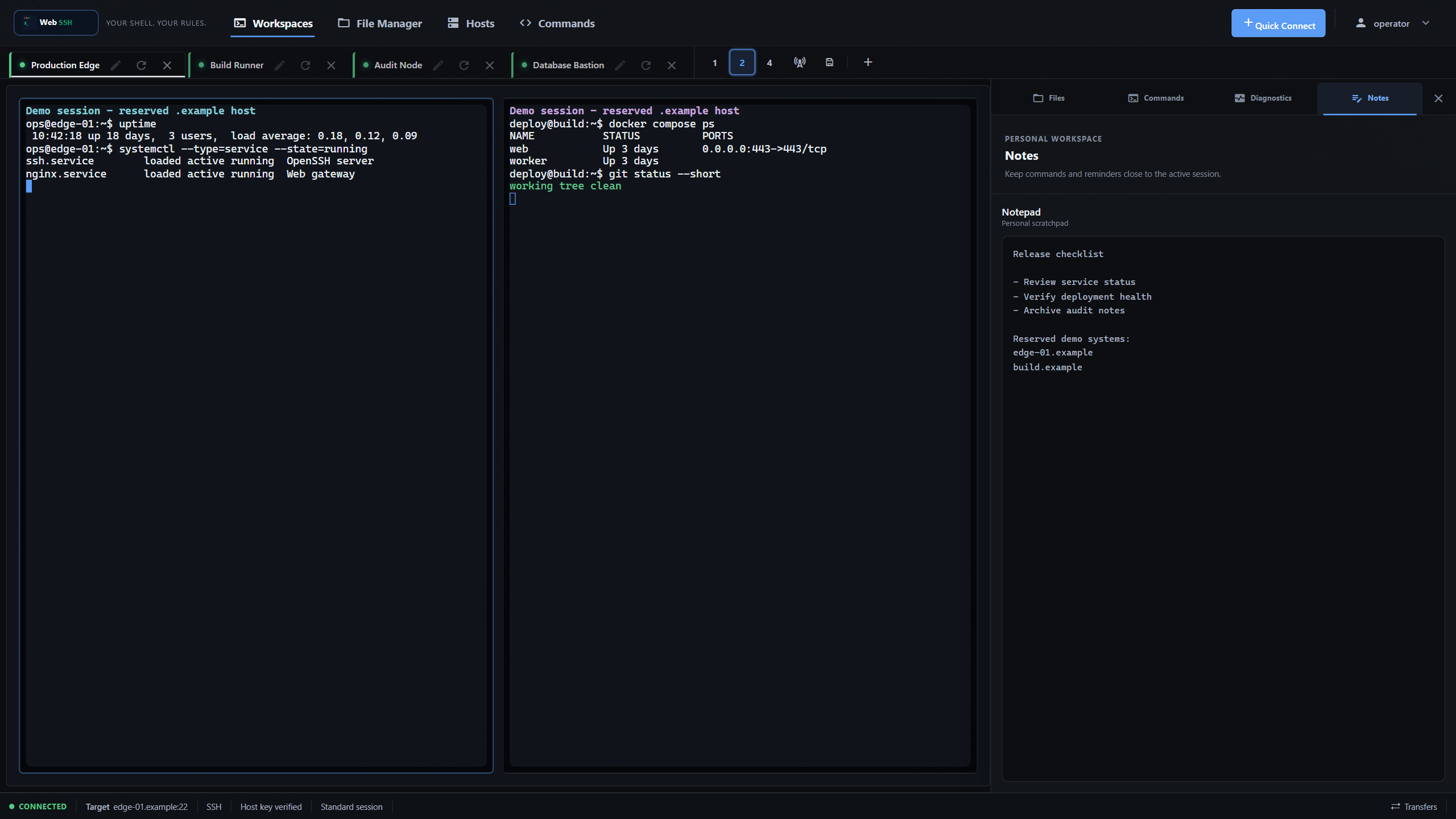
Enable persistence with tmux installed on the target server. The remote tmux session can survive a browser disconnect so you can reconnect later. This does not extend your browser sign-in lifetime.
Use terminal search, session switching, reconnect controls and the command palette. Optional broadcast input sends the same input to open sessions; check the target set before using it.
02 / Files and transfers
Use the SFTP companion beside a connected terminal, or open the dedicated file workspace with one or two panes. Each pane identifies its source and path, so the destination stays visible while you work.
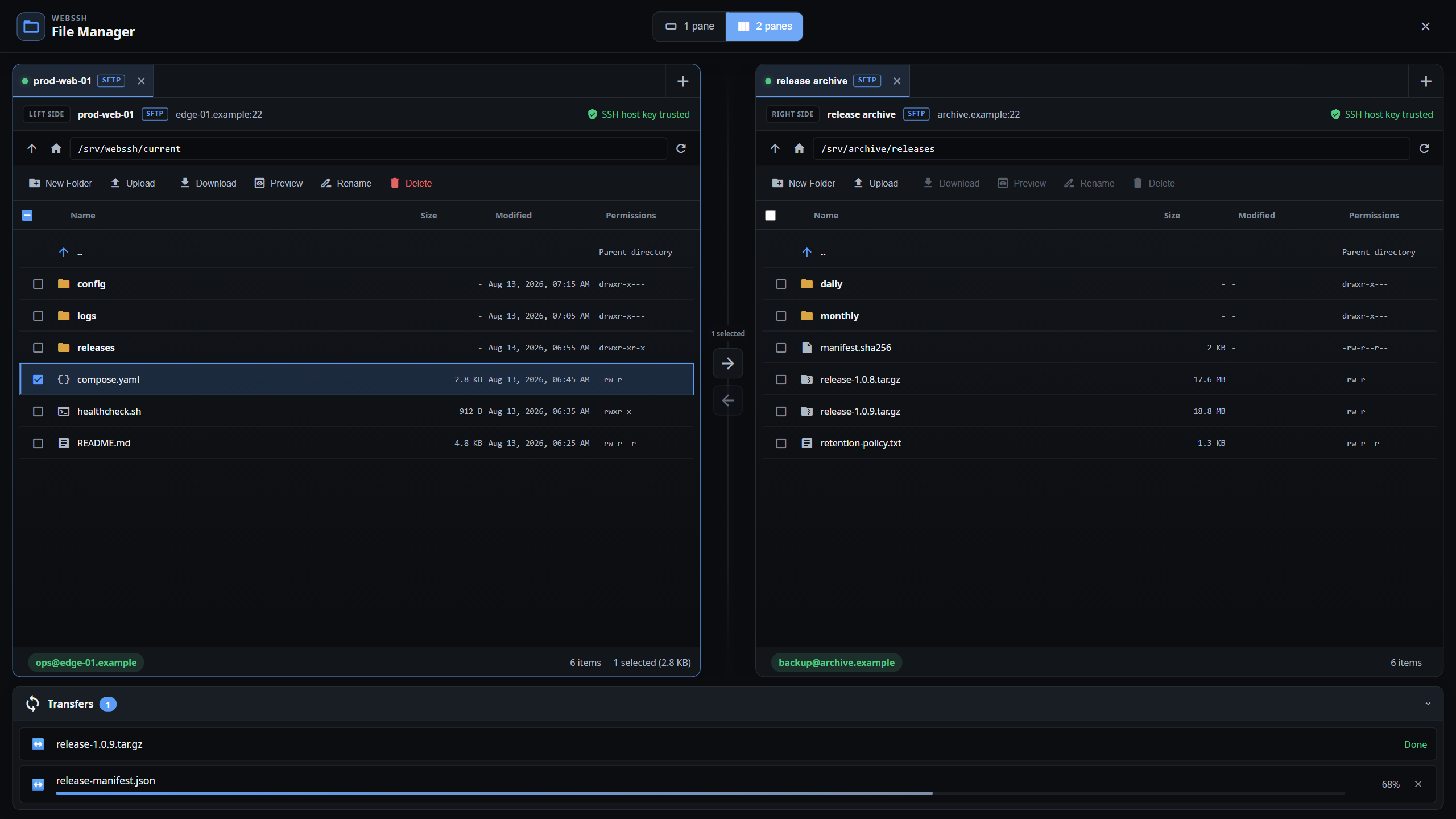
Upload and download files, preview supported content, edit text and perform common file operations. Remote permissions, configured size limits and the selected source determine which actions are available.
Copy between SFTP sources with progress, cancellation and explicit conflict handling. The transfer queue keeps work visible, while bulk transfers stream through the server rather than accumulating whole files in browser memory.
03 / Daily workflow
Save the details you use repeatedly and keep tools aligned with the active session. WebSSH combines the terminal with commands, notes, files and supported Linux diagnostics.
Reuse connection settings and reach targets through configured jump hosts. Key and password authentication are supported, with host-key verification tied to the individual WebSSH user.
Save frequently used commands and organize related commands into sets. Review the active host and remote permissions before running an operation.
Keep working notes next to the server context. Return to the relevant information without maintaining a separate document for every terminal tab.
Inspect supported resource history, processes, systemd services and Docker containers. Available data depends on the remote system and account permissions. Service actions prepare commands for your clipboard; they do not silently execute a service change.
Hosts, jump hosts and commands · Administration and diagnostics
04 / Desktop to mobile
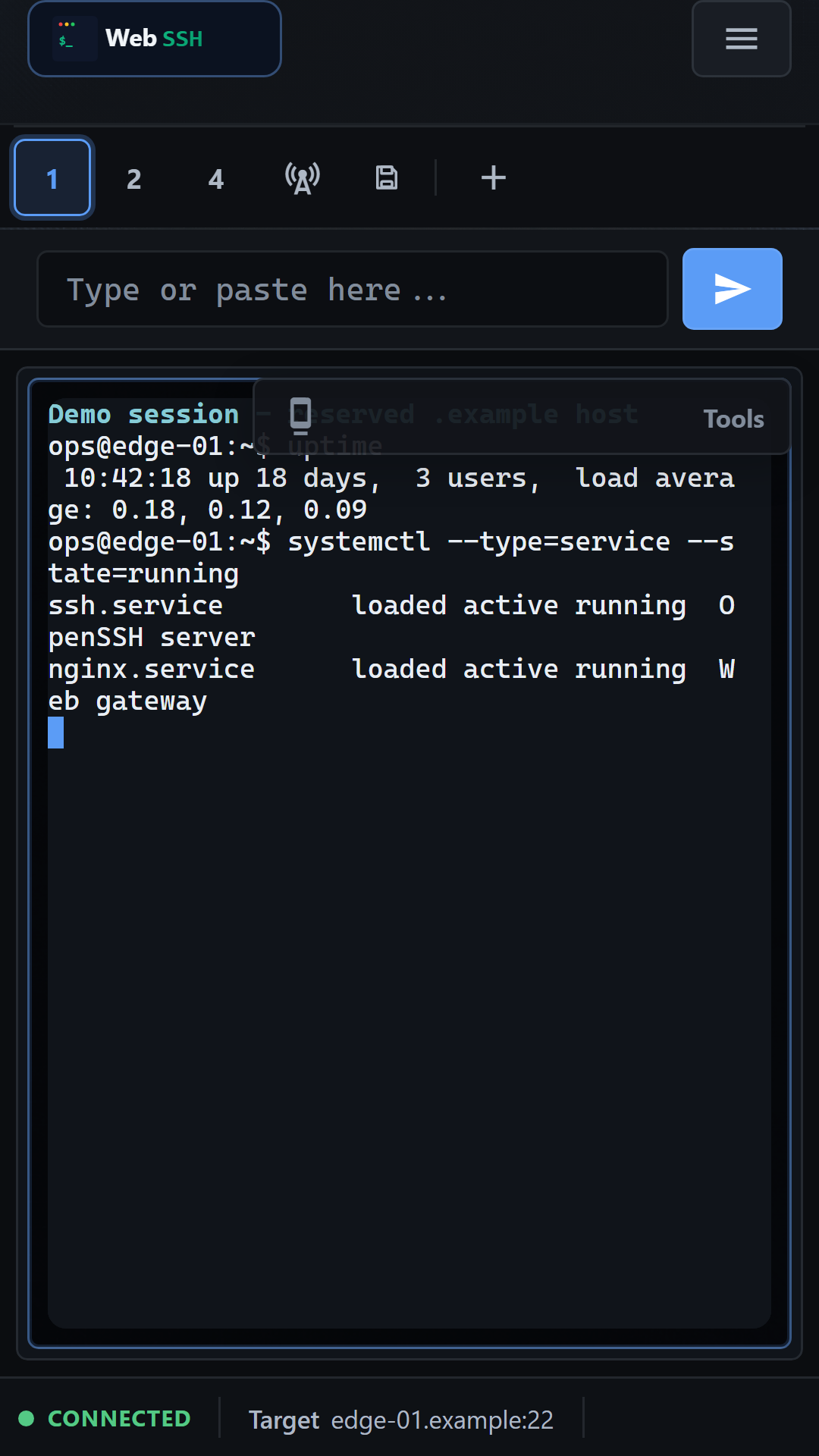
The responsive interface adapts to a focused terminal view on a phone and a wider multi-pane workspace on a desktop. Use a browser that can reach your instance; no hosted WebSSH account is needed.
Mobile access follows the same account permissions and network boundaries. A reachable instance and suitable HTTPS or trusted-network configuration are still required.
05 / Administration
Manage users and registration, configure optional authentication methods, export audit events and use native backup and restore. Health and readiness endpoints help you check deployments.
Connections, stored keys, settings and host trust belong to each user. A multi-user instance provides separate workspaces; it does not make every user's sessions or credentials shared.
Start with local accounts. Passkeys, TOTP, OIDC, a GitHub App and LDAP / Active Directory are optional. Their setup and activation requirements are documented separately.
Compare authentication methods · Backup, restore and secret rotation
Choose a local evaluation, trusted homelab or production deployment.